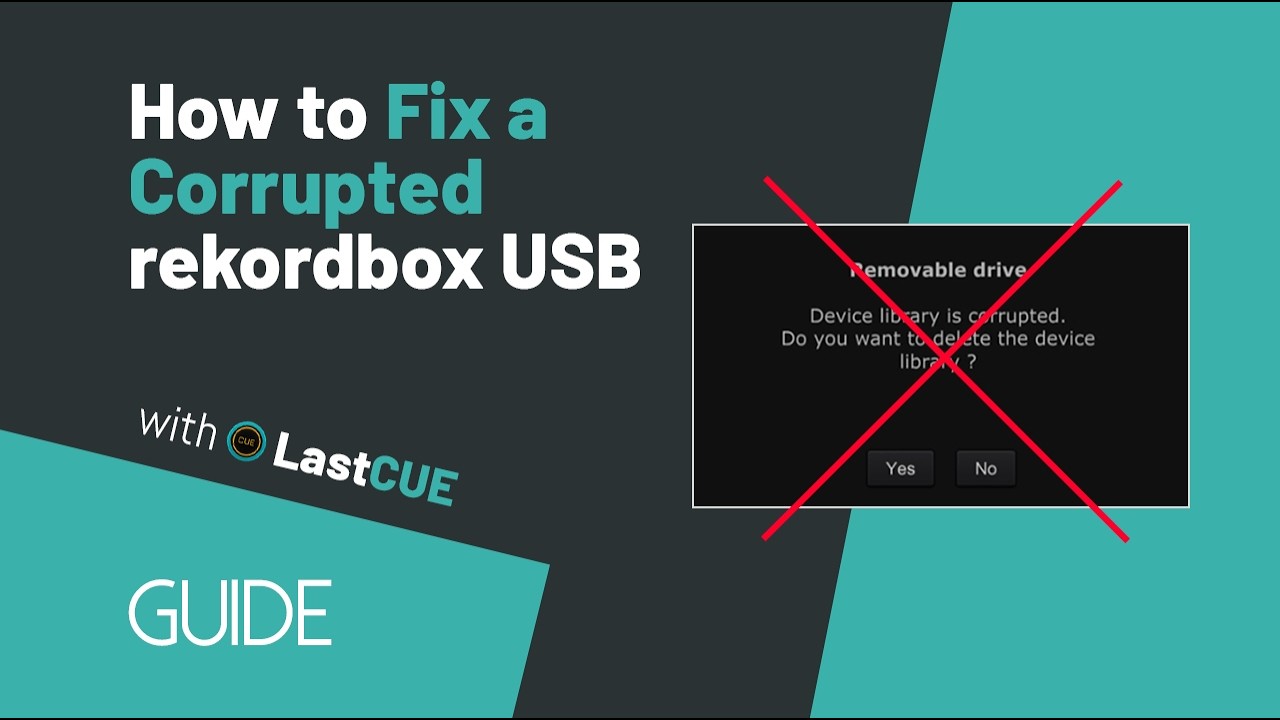
1. Choose No
If rekordbox shows the corrupted Device Library warning, choose No, then close rekordbox.
2. Check the USB before repair
- Confirm
PIONEER/rekordbox/export.pdbis still present. - Confirm the audio files are still on the USB.
- Check whether a CDJ still shows any tracks or playlists.
- Check whether
PIONEER/USBANLZanalysis files are still present.
Here, Device Library refers to the export.pdb library. Device Library Plus (OneLibrary) uses a different database format and isn’t supported by this repair guide.
3. Generate a repair preview
- Open LastCUE and click Repair.
- Choose Auto Detect or Manual Select. If you use Manual Select, choose the
PIONEERfolder on the USB. You can also copy the entirePIONEERfolder to your computer first and select the copied folder instead. - Click Quick Preview to confirm that the correct library has been selected. Depending on the extent of the damage, some library data may be incomplete.
- Click Repair Preview to generate a preview of the repaired library.
- Review the recovered playlists, track list, cue points, and analysis data before starting the repair.
4. Run Safe Repair
Click Start Safe Repair and wait for the repair to finish.
By default, LastCUE saves the repaired result to a local output folder without overwriting the source USB. You can also choose a different Repair output folder before starting the repair.
When Repair Complete appears:
- Click Open folder.
- Open
PIONEER/rekordbox. - Copy the repaired
export.pdb. - Open the damaged USB and go to
PIONEER/rekordbox. - Replace the existing
export.pdbwith the repaired one.
5. Optional: Write the repair directly to the USB
If you prefer not to replace export.pdb manually, enable Overwrite USB directly after LastCUE detects the connected rekordbox USB.
Before writing anything, LastCUE automatically backs up the existing PIONEER folder as PIONEER_BACKUP_*. It then writes the repaired library back to the USB for you.
Make sure the correct USB is selected before starting the repair.
6. Check the repaired USB
Open the USB in rekordbox and make sure everything looks normal. If you’re heading to a gig, a quick check on your CDJ or XDJ is also a good idea.
If everything looks right, you’re good to go. Enjoy the music, and have a great set.